PDF Reader - PDF Viewer
- 4.2
- Rating
- 100.00M
- Installs
- Free
- Price
 Analysis by App-foxy
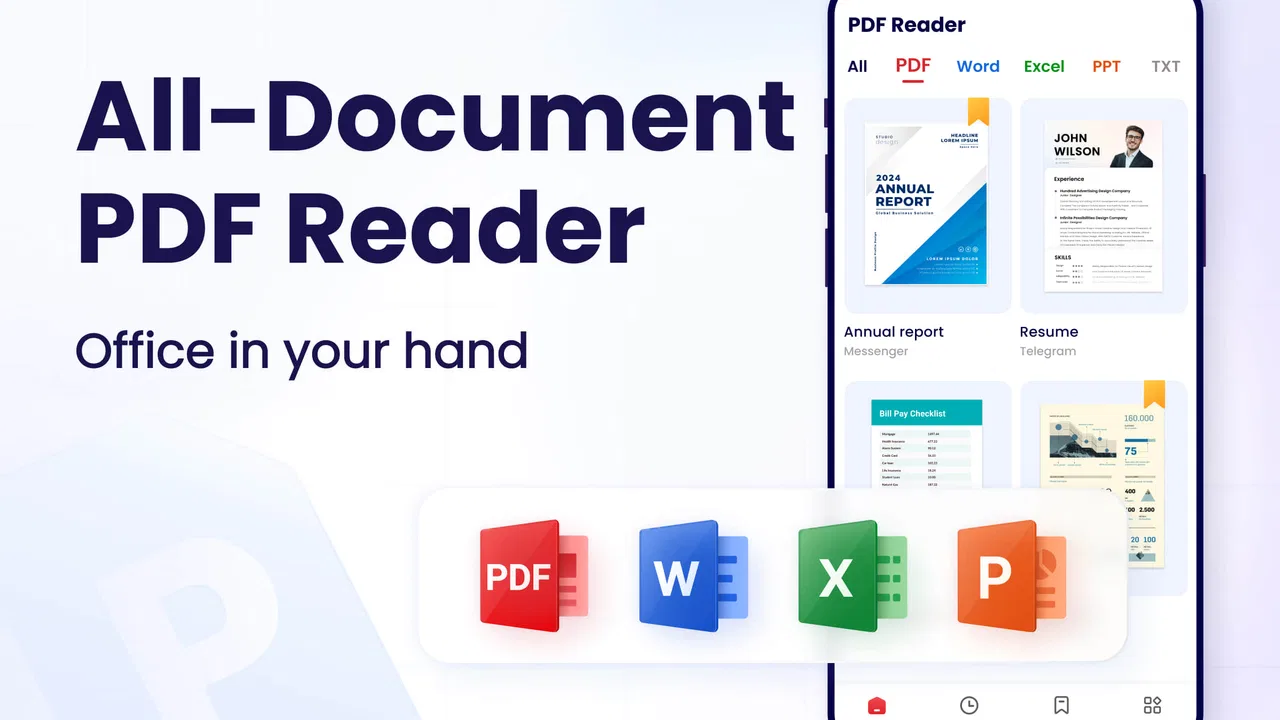
I spent time with PDF Reader - PDF Viewer as a practical productivity tool rather than treating it as just another document opener. Its purpose is straightforward: help you read, edit, organize, and manage PDF files, while also handling DOCX documents through a PDF-focused workflow. That combination makes it more useful than a basic viewer, especially when I need to inspect a file quickly on a phone instead of opening a full desktop office suite.
The app is free to install, rated for Everyone, and comes from the developer QR Code Scanner. It has built a very large audience, with over 100 million installs and an average score of 4.4 from around 1.1 million ratings. Those figures suggest that the app has become a familiar choice for people who want a dedicated document utility, although popularity alone does not guarantee that it will suit every workflow.
My overall impression is that PDF Reader - PDF Viewer is most convincing when used for everyday document handling: opening an attachment, checking a form, reading a manual, or making a quick change before sharing a file. It is less appealing if I need a full desktop-style editing environment, advanced document production, or a completely frictionless experience without any paid upgrade prompts.
You May Also Like

 AccuWeather: Weather Radar
AccuWeather Review: A Quick, Clear Forecast for Everyday Decisions
For everyday plans, the best forecast is the one you can understand quickly. AccuWeather makes rain timing, radar, and local conditions easy to act on, with a few trade-offs.

 Hill Climb Racing
Why Hill Climb Racing Still Turns Crashes Into One More Run
A tiny car, a bumpy hill and one more upgrade: Hill Climb Racing keeps resurfacing because its simple chaos makes every near-miss feel personal.

 AliExpress - Shopping App
AliExpress Makes Global Shopping Feel Personal, but Shoppers Bear the Risk
AliExpress turns a global marketplace into a pocket-sized discovery engine. Its reach is useful, its shopping loop compelling, and its trade-offs easy to miss.

 Lords Mobile: Kingdom Wars
Lords Mobile Is a Kingdom-Building Routine, Not a Quick Match
A case-by-case verdict on the building, battles, device demands, and social commitments that make Lords Mobile rewarding for some players and exhausting for others.

 PDF Scanner app - TapScanner
TapScanner Makes Paperwork Easier to Capture, Check, and Share
TapScanner makes scanning with a phone feel less like a rescue operation and more like a dependable step in getting work done. Its capture tools are useful, though not flawless.

 Block Blast!
 Shows How Much a Puzzle Game Can Leave Out
A quiet grid game shows why puzzle players increasingly value instant clarity, repeatable skill and low-pressure play—and where the genre still needs to catch up.
More From Our News Desk
View All News


How quickly it fits into everyday document work
The first thing I look for in a document app is whether it gets me to the file without unnecessary effort. A phone-based PDF tool is often used in a hurry, perhaps when someone sends a contract in a messaging app or when I need to check a travel document while away from a computer. In that situation, the value is not flashy design; it is the ability to open the file, understand its contents, and take the next action without confusion.
PDF Reader - PDF Viewer is designed around that direct use. The reading experience is the central task, while editing and file management sit close enough to be useful when the document needs more than simple viewing. I found that approach sensible for a mobile screen. Rather than expecting the phone to replace a complete office workstation, the app focuses on the common moments when a document needs attention immediately.
Perceived speed depends heavily on the file itself and the phone being used. A short text document should feel like a natural fit for a mobile viewer, while a large file containing many pages or complex visual elements can reasonably take more work to display. I would not judge the app only by how quickly a single-page file opens. The more important question is whether navigation remains comfortable once the document is open and whether editing a small detail is less trouble than switching to another app.
One useful habit is to separate reading from editing. If I only need to check information, I avoid entering an editing workflow. That keeps the task simple and reduces the chance of changing something accidentally. When a file does need an adjustment, I first make sure I am working on a copy or on the intended version. This is especially important on a phone, where it is easy to confuse a downloaded attachment with a revised document.
Where the mobile format works best
The app makes the most sense for people who regularly receive PDFs but do not want a full office package installed just to read them. Students can use it to review course material, renters can inspect forms, and small-business owners can check invoices or instructions while moving between appointments. It is also a reasonable companion for anyone who keeps reference documents on a phone and wants more control than the default file viewer provides.
Its handling of DOCX files is worth noting because it broadens the situations in which I would reach for it. A Word document and a PDF are not interchangeable, but being able to bring both into one document-oriented app can simplify a short review session. I would still check the layout carefully after opening or converting any editable office document, since formatting can behave differently across applications. For reading and basic management, the convenience is clear; for precision document production, I would prefer the program that originally created the file.
The strongest use case is quick, focused document work on a phone, not replacing every function of a desktop editor. That distinction helps set realistic expectations before installing it.
What happens when the workload becomes heavier
Light use tells only part of the story. The more revealing moments come when I open several documents in succession, move through a long file, or combine reading with editing and file organization. These tasks place more pressure on the device and can make any mobile document app feel less immediate than it did with a small attachment.
PDF Reader - PDF Viewer is likely to feel most comfortable when the phone has enough free storage and memory for normal multitasking. I would avoid keeping many unrelated apps active in the background during a demanding document session, particularly on an older handset. That is not a criticism unique to this app; document rendering and office-file handling naturally require more work than displaying a simple webpage.
A realistic example is preparing for a meeting. I might receive an agenda as a PDF, open a DOCX briefing note, return to the agenda to check a page, and then make a small adjustment to a working document. The app is useful here because it keeps those document tasks in one place. The trade-off is that a long session can become less comfortable on a small screen, and repeated switching may expose the limits of mobile file management compared with a computer.
For heavy reading, I would use a stable routine. I keep the source files in a clearly named folder, open only the documents needed for the current task, and save a revised copy with a different name when the original matters. This is not a hidden button or a special feature; it is a practical way to reduce recovery problems when working on a phone. The app becomes much easier to trust when my own file habits are organized.
Large documents also raise a question about battery and resource use. No app can make a complex file cost the same as a short one, and the phone’s display is often the bigger factor during a long reading session. I would not choose this application specifically as a low-resource reader based on the store information alone. I would choose it because it combines viewing with useful document actions, then judge its comfort on the particular device I use.
Stability, saving, and recovering from interruptions
Reliability in a document app is not only about avoiding crashes. It also means knowing which file is open, understanding what has been changed, and being able to return to the task after a call, notification, or accidental exit. Those details matter because a document can be more important than the app itself.
My safest approach is to treat every edit as something that deserves a deliberate save and a quick review afterward. I do not assume that closing a document means the latest change has been preserved exactly as intended. After editing, I reopen the resulting file or at least check its name and location before sharing it. This is particularly valuable when the task involves a form, a work attachment, or anything that would be difficult to recreate.
The app’s document-management purpose is helpful here, but it does not remove the need for backups. I would keep an important original separately and avoid overwriting it until I have confirmed the revised version. That workflow also answers a common concern for mobile users: what to do if the app or phone is interrupted. A clean original and clearly named working copy make recovery far less stressful than relying on one file.
Another practical point is to allow a document time to finish opening before repeatedly tapping controls. When a file is still rendering, impatient taps can make the interface feel less responsive even when the app is working normally. I prefer to wait briefly, then navigate in a controlled way. This is a small adjustment, but it improves the perceived stability of any document reader.
Compatibility and the limits of a phone screen
The application supports devices running Android 6.0 or later, which gives it a broad potential reach. That does not mean every compatible phone will provide the same experience. A newer device may handle multitasking and complex files more comfortably, while an older model could make long documents or repeated editing feel slower. The operating-system requirement tells me whether installation is possible, not how pleasant every task will be.
Screen size is another real constraint. Reading a normal page on a phone usually means zooming, panning, or accepting smaller text. That is manageable for short checks, but tiring for a full workday of document review. I would use the app for mobility and convenience, then move to a tablet or computer when the document requires extended reading, precise layout inspection, or side-by-side comparison.
People who depend on advanced desktop publishing tools should also be cautious. A mobile PDF editor can be excellent for a quick correction, but it is not automatically the right choice for complex forms, detailed page composition, or professional document production. If exact typography, elaborate tables, or extensive revision tracking is central to the job, the original office application or a dedicated desktop PDF editor will probably be better.
There is also a financial consideration. The app is free, but optional in-app purchases range from $4.49 to $69.99 per item. I would install it first for the free experience and only consider paying after identifying a feature I genuinely use. That price range means the upgrade decision deserves attention rather than being treated as an automatic small add-on. For occasional reading, the free option may be enough; frequent editors should examine the paid workflow carefully before committing.
Who should install it, and who should choose something else?
I would recommend PDF Reader - PDF Viewer to someone who wants one accessible place for reading PDFs, handling DOCX files, and making occasional document changes. It is particularly suitable for students, commuters, freelancers, and anyone who receives documents away from a desk. The broad install base and strong average rating also make it a reasonable first option when someone wants a familiar, general-purpose document utility rather than a niche specialist tool.
I would be more selective for a person who reads very long technical books every day, edits complex business documents, or needs exact desktop-level control. In those cases, a dedicated e-reader, the original word processor, or a professional PDF editor may provide a better experience. I would also hesitate if the user dislikes optional purchase prompts or wants every advanced function included without evaluating an upgrade.
Compared with a basic built-in viewer, this app offers a more complete document workflow because reading is joined by editing and management tools. Compared with a full office suite, it should feel more focused and easier to keep around for quick PDF tasks, but potentially less capable for elaborate creation and collaboration. That middle position is its main appeal: it fills the gap between “just open this file” and “install a complete office workstation.”
My practical verdict after using it
PDF Reader - PDF Viewer is a sensible productivity app when the priority is convenient document access on Android. Its current version is 2.0.2, and the overall package is aimed at people who want to read, manage, and occasionally edit files without turning every small task into a computer session. I appreciate that its usefulness comes from combining related jobs rather than trying to be a specialized tool for only one kind of document.
Its performance should be judged by workload and hardware. Short files and quick checks are the natural territory, while large documents, extended reading, and repeated switching can demand more patience from both the app and the device. Good file naming, separate copies, and deliberate saving make a noticeable difference to the experience, especially when a document matters.
My recommendation is therefore positive but specific. Install it if you want a free starting point for mobile PDF reading with extra document capabilities, and test it with the files you actually use. Keep a desktop alternative for precision work, maintain backups for important originals, and think carefully before paying for optional features. For everyday document emergencies and short editing sessions, this is a practical tool that earns its place on a phone; for intensive professional production, I would choose a more specialized solution.
FAQs for PDF Reader - PDF Viewer
01What features does PDF Reader - PDF Viewer offer?
PDF Reader - PDF Viewer provides a comprehensive suite of features including viewing, annotating, and editing PDFs. Users can highlight text, add notes, and fill out forms. Additionally, the app supports cloud integration, allowing easy access and synchronization across devices, making it a versatile tool for both personal and professional use.
02Is PDF Reader - PDF Viewer free to use?
PDF Reader - PDF Viewer offers a free version with basic features such as viewing and annotating. However, a premium subscription is available, granting access to advanced features like editing, converting files, and cloud storage integration. Users should consider their needs to determine if the premium version is necessary.
03How secure is my data with PDF Reader - PDF Viewer?
The app prioritizes user security by providing encryption for documents and secure cloud storage options. It also requires user authentication for access, ensuring that your data remains protected. Users are advised to regularly update the app to benefit from the latest security enhancements.
04Can I use PDF Reader - PDF Viewer offline?
Yes, PDF Reader - PDF Viewer can be used offline for viewing and annotating PDFs. However, features that require internet access, such as cloud synchronization and online document sharing, will not be available until you reconnect to the internet.
05What platforms support PDF Reader - PDF Viewer?
PDF Reader - PDF Viewer is supported on both Android and iOS platforms, making it accessible to a wide range of users. The app is optimized for smartphones and tablets, ensuring a seamless user experience across different devices. Regular updates enhance compatibility and performance.
Pros
- Fast and smooth document loading.
- Supports multiple file formats.
- User-friendly interface design.
- Offline access to documents.
- Annotation tools for easy editing.
Cons
- Ads can be intrusive at times.
- Limited features in free version.
- Occasional crashes on large files.
- No cloud storage integration.
- Lacks advanced editing options.

PDF Reader - PDF Viewer
Gallery